Get started
Connect Claude
The one-time setup, step by step, plus the one-paste Claude Code setup and the command-line fallback.
Connect Claude once and you can say "publish this" in any Claude conversation and get a live URL back. Do it in a web browser on a computer; once it's connected, it works in Claude on your phone too. Using Claude Code? Jump to Claude Code.
Connect in one click
Copy this address.
https://app.pagesumo.com/api/mcpClick Connect to Claude. Claude opens with the Add custom connector box ready.
Name it PageSumo and paste the address. Leave Advanced settings empty, click Add, then Connect, and sign in with your PageSumo account.
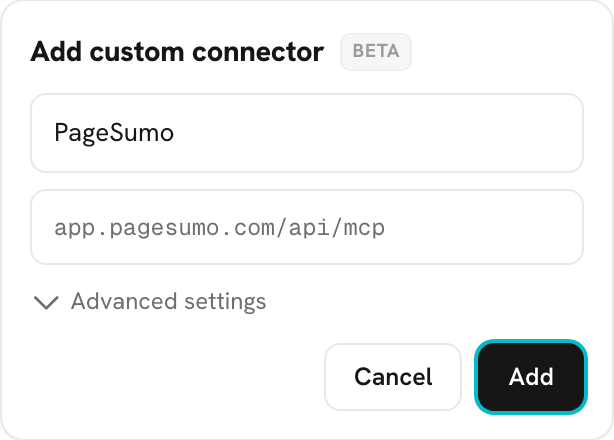
That's the whole setup. Back in any Claude chat, say "publish this" about something Claude made for you, and your live link comes right back.
Find it in Claude's menus instead
If the button doesn't open the box, here's the same thing by hand.
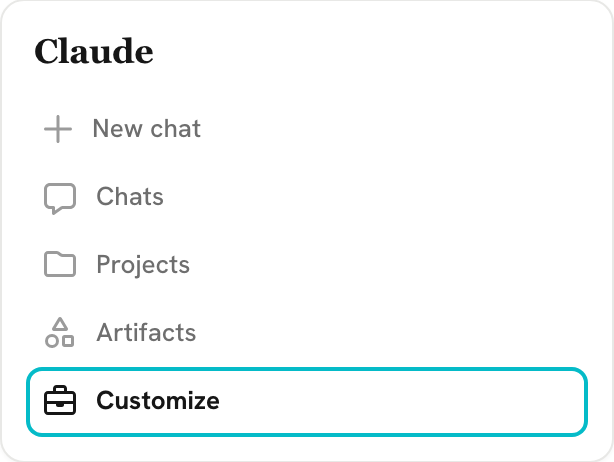
In Claude's left sidebar, click Customize.
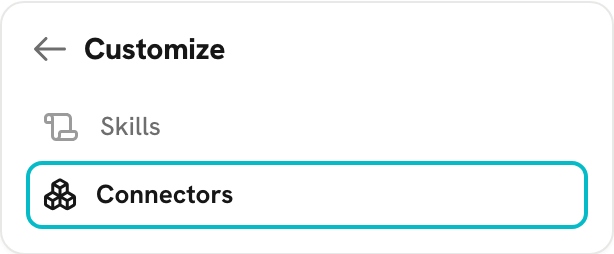
Inside Customize, choose Connectors.
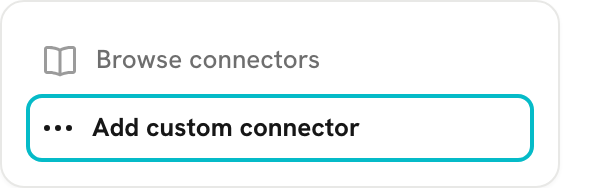
Click the + next to Connectors, then Add custom connector.
Name it PageSumo, paste the address from step 1 above into Remote MCP server URL, leave Advanced settings empty, click Add, then Connect, and sign in.
How to tell it worked
Say "publish this" in any Claude chat and your live link comes back. In the dashboard, Settings shows a green Claude connected chip.
Claude says PageSumo is already added? Don't add it again. In Claude's Connectors list, open the existing PageSumo tile and click Connect to sign back in.
Claude Code
Claude Code is where you build real projects: whole sites, folders of images, things you keep working on. With PageSumo it works from your PageSumo studio, a folder on your computer where Claude Code builds your pages and sites and publishes them when you ask. One paste sets the folder up and connects PageSumo at the same time, so you can start here even if you have never connected Claude before.
Open the Claude app on your computer and click Code. It sits next to Chats in the sidebar.
Make a folder for your PageSumo work. In Finder or File Explorer, create a folder called PageSumo inside Documents. Any name works; PageSumo is easy to find again later.
Start a new session in that folder. When Code asks which folder to work in, pick the PageSumo folder you just made.
Paste this into the chat and send it:
Run this https://app.pagesumo.com/setupClaude Code reads PageSumo's setup instructions from that address and writes a short note into the folder so every later session knows what the folder is for. Nothing is downloaded or installed on your computer.
Your browser opens on a PageSumo page. Create your account there, or sign in if you have one, and click Connect Claude Code. That is the whole sign-in. Back in Code, Claude tells you setup is done, which plan you are on and what it allows, and, if it made a folder for you, where that folder is.
Now ask for what you want, in that same session, for example "a landing page for my ebook" or "a three-page site for my coaching business". Claude Code asks a couple of questions, builds it, shows it to you, and publishes it when you say so. Later, ask it to update that page or site by name and the same link updates. See Publish from Claude Code for how the folder is laid out and what happens on each publish.
The browser page says the link expired? Pairing links last ten minutes. Paste the sentence into Claude Code again and it opens a fresh one.
The same paste is in the dashboard with a Copy button: Settings, then Connect to Claude, then the Claude Code tab.
Already connected in Claude chat? Do the paste anyway. Claude Code keeps its own list of connections, so connecting in chat does not put PageSumo into Code by itself. The paste covers that, and the folder setup is what makes Code work well with PageSumo.
On a command line instead? The same paste works in Claude Code in a terminal. If you would rather add the connection yourself, run this, then type /mcp inside Claude Code, pick pagesumo, and sign in:
claude mcp add -s user -t http pagesumo https://app.pagesumo.com/api/mcp
Disconnect
- Go to Settings. Under the "Connect Claude" card you'll see "PageSumo is connected to your account."
- Click Disconnect all apps, then confirm with Disconnect.
Every connected app loses access and can no longer publish or manage pages. Pages you already published stay live. Disconnecting also clears your connection key, if you were using one.
Claude will still show PageSumo in its Connectors list afterward, but it can't publish until you sign in again. To reconnect, open the PageSumo tile in Claude's Connectors list and click Connect.
FAQ
Do I have to connect in every conversation? No. It's account-wide. Connect once and PageSumo is available in every Claude conversation on that account, including Claude Code and Cowork.
Will Claude publish things without asking? No. Claude only publishes, updates, or deletes when you explicitly ask.
Can I publish from ChatGPT or other AI tools? PageSumo connects through Claude today; other tools aren't set up yet.
Claude's screens keep saying "MCP". What is that? MCP (Model Context Protocol) is the standard way AI assistants connect to outside tools, the way any browser can open any website. PageSumo runs an MCP server, and that's what Claude talks to when you say "publish this". There's nothing to install or maintain. Connecting Claude to PageSumo IS setting up the MCP connection.
Connect from the command line
Most people never need this. Some setups can't finish the browser sign-in: a remote machine you reach over a terminal, or a tool with no browser at all, has nowhere to show the login page. For those, your account has a connection key that lets a command-line tool publish as you.
- Go to Settings and find the Connection key card.
- Click Reveal key. The card also shows when the key was last used.
- Paste the key into the chat with the tool you're using. The card suggests the exact phrase: "Connect me to PageSumo at app.pagesumo.com/api/mcp, my connection key is ..." with your key at the end.
Treat the key like a password: whoever has it has your publishing access. If you think it leaked, click Regenerate key and confirm. The old key stops working immediately, everywhere it was pasted.